1. Export an EDL marker file from DaVinci Resolve
- Select the sequence in your media tab.
- Make the right click on the sequence timeline in your media tab and it will open the popup.
- Navigate to: "Timeline > Export > Timeline Markers to EDL"
2. Use the "İşaretleyici Dönüştürücü" to convert the EDL marker file into a CSV file
Open the free İşaretleyici Dönüştürücü, select "DaVinci Resolve > Sequence (.edl)" and set "convert" to "CSV for Apple Numbers". Generate and download the file. Dosyayı dönüştürürken sorun yaşarsanız ücretsiz destek ekibimizle iletişime geçebilirsiniz.
3. Import the CSV file into Numbers
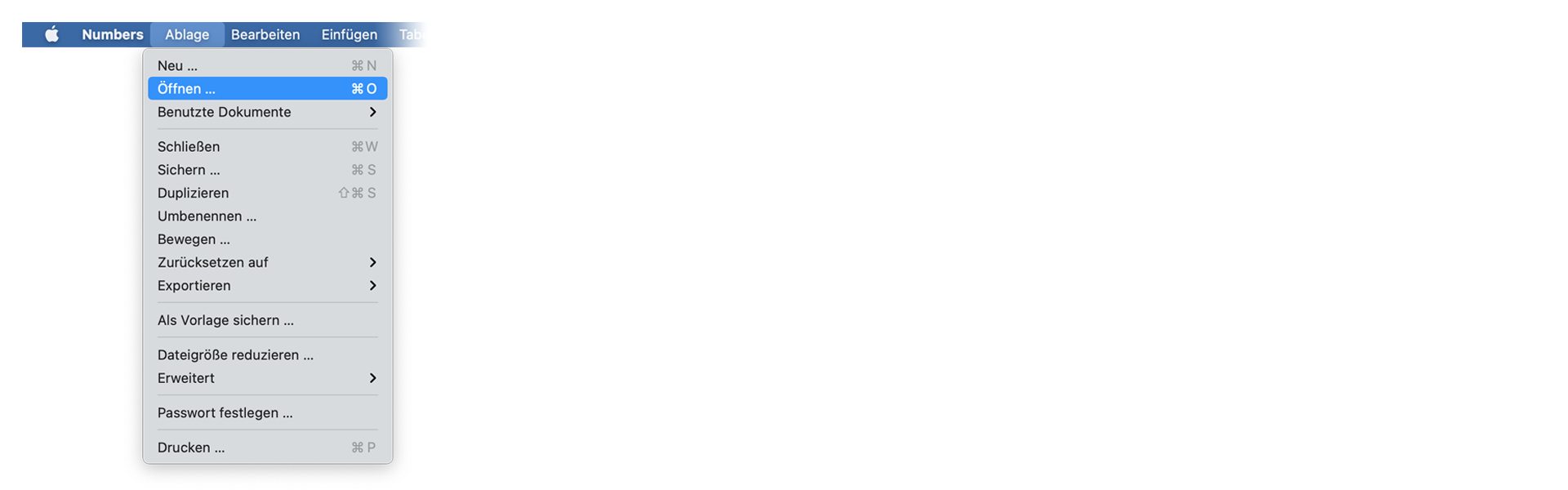
Open Numbers and go to "File -> Open". Simply open the CSV file.
🚀 Bitti
Şimdilik bu kadar! Bu eğitimi faydalı bulduysanız bizi desteklemek için lütfen paylaşın. İş akışını nasıl iyileştirebileceğimize dair önerileriniz varsa lütfen bize bildirin!