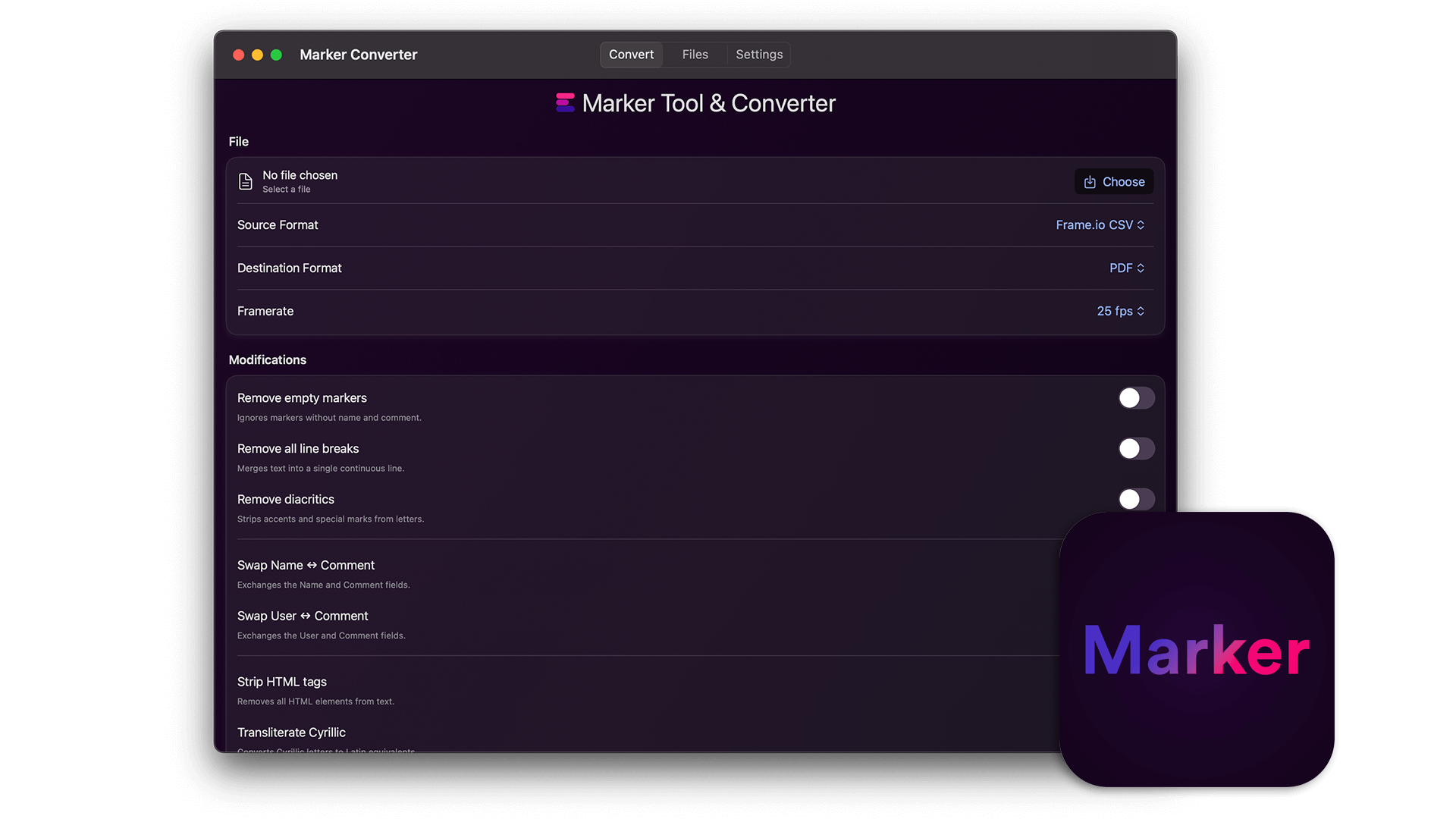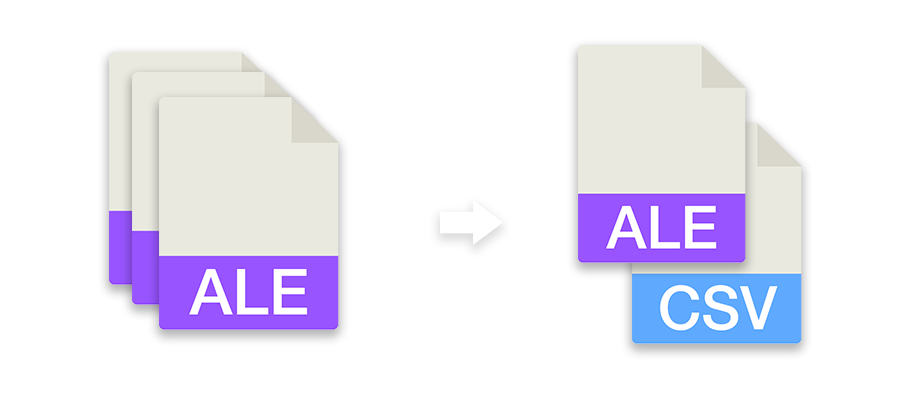
Farklı programlar arasında işaretçi alışverişini basitleştirin. Zaman çizelgesi işaretleyicilerini Premiere Pro, DaVinci Resolve, Media Composer, Pro Tools, Frame.io, Pix, CSV, Google Sheets, PDF ve daha fazlası için çeşitli formatlara dönüştürün. Araç ayrıca işaretleyicileri renge göre filtrelemenize, renkleri değiştirmenize veya zaman kodlarını taşımanıza ve düzeltmenize olanak tanır.
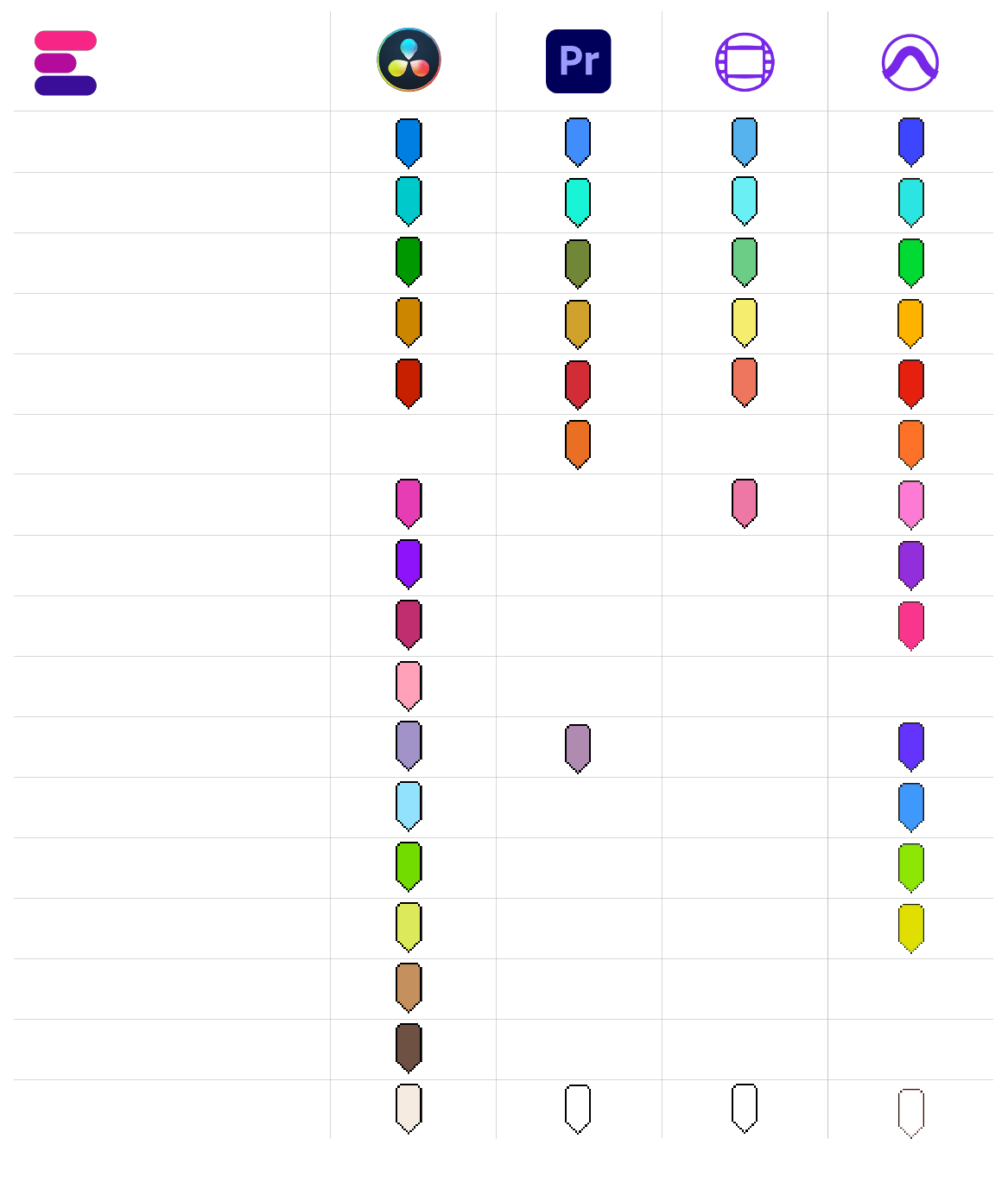
Farklı yazılımlarda işaretleyici renkleri için tek tip kurallar yoktur. Her program farklı renk tonları ve kısmen de farklı renk adları kullanır. EditingTools.io'nun işaretleyici dönüştürücüsü, işaretleyici rengini en yakın renk grubuna atamaya çalışır.
Bu grafikle, hangi renklerin tanındığına ve nasıl yorumlandığına dair genel bir bakış elde edersiniz.
İçe aktarma dosyasında herhangi bir renk tanımlanmamışsa veya bilinmiyorsa kullanılacak varsayılan bir işaretleyici rengi tanımlayabilirsiniz.
Bu işlevle, işaretleyicileri filtreleyebilir ve yalnızca belirli işaretleyicilerin dönüştürüleceğini belirtebilirsiniz. Birden fazla rengi filtrelemek istiyorsanız, lütfen "işaretleyici renklerini değiştir" işlevini kullanın.
Tüm işaretleyicileri belirli bir aralıkta hareket ettirmek için bu işlevi kullanın. Pozitif veya negatif bir değer girebilirsiniz.
Premiere Pro XML ve FCP7 XML'den klip işaretleyicileri eklemek için bu seçeneği etkinleştirin. Bu seçenek ayrıca CSV dışa aktarımlarına parça kimliği, klip adı, kaynak, kaynak zaman kodu girişi ve kaynak zaman kodu çıkışı ekleyecektir.
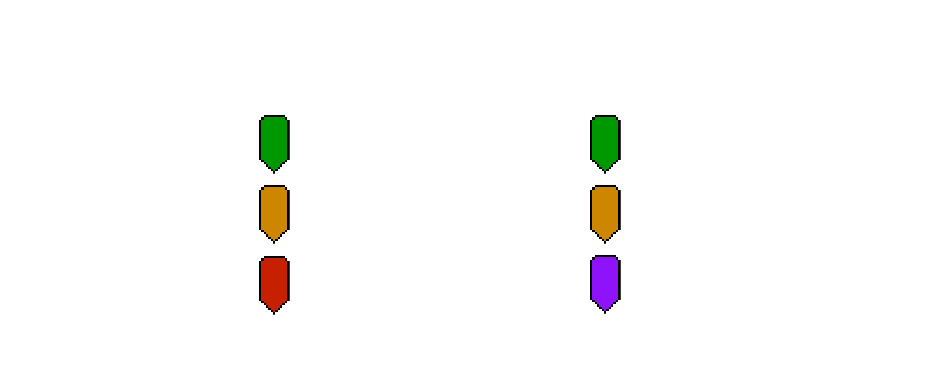
İşaretleyici adlarının üzerine yazın ve her renk için ayrı bir işaretleyici başlığı atayın. Örneğin, açıklamayı kaybetmeden tüm sarı işaretleyicileri otomatik olarak "VFX" ve tüm mavi işaretleyicileri "ADR" olarak adlandırabilirsiniz.
İşaretleyici renklerini yeniden atamak için bu işlevi kullanın. Seçim alanları aracılığıyla yeni işaretleyici renklerini tanımlamanız yeterlidir. Bu seçeneği gelişmiş bir renk filtresi olarak da kullanabilirsiniz.
Aynı anda en fazla 20 farklı işaretleyici dosyası yükleyebilir ve bunları tek bir işaretleyici dosyasında birleştirebilirsiniz. Lütfen bu dosyaların hepsinin aynı formatta olması gerektiğini unutmayın.
Eğer 00:00:00:00 dışında bir şey kullanıyorsanız, oturumunuzun veya düzenleme sekansınızın Başlangıç Zaman Kodunu girin. Bu, örneğin Avid Pro Tools ve Adobe Premiere Pro'ya veya Frame.io veya Pix'ten başka bir formata dönüştürdüğünüzde gereklidir.
Bir EDL dosyası seçebilir ve her klibi bir işaretleyiciye dönüştürebilirsiniz. Bu, örneğin tüm VFX çekimlerini bir kerede işaretlemek için kullanışlıdır. Bunları bir düzenleme programında ayrı bir parçaya yerleştirin ve yalnızca bu video parçasını içeren bir EDL'yi dışa aktarın. "Şuradan dönüştür" alanını "Klipleri EDL'den işaretleyicilere dönüştür" olarak ayarlayın.
The following applications and file formats are supported among others. See our instructions for each format below.
| Editing Software | Adobe Premiere Pro, Adobe Audition, Apple Final Cut Pro, Avid Media Composer, Avid Pro Tools, DaVinci Resolve |
| Review Tools | Frame.io, Vimeo Review, Dropbox Replay, Pix Systems, NoteTracks Pro, Krock.io |
| Subtitles | SRT, VTT, SBV, (more in our Subtitle Tool) |
| Docs & Sheets | PDF, CSV, Text, Excel, Google Sheets, Apple Numbers, OpenDocument Spreadsheet, TSV |
| Other Tools | oTranscribe, Adobe Prelude Live Logger, NanoLokit Logs |
Go to "File -> Import" and select the xml file.
Select the sequence in your project tab.
In menu, go to: "File -> Export -> Final Cut Pro XML"
Select "Final Cut Pro XML" and hit ok.
You can use Adobe Prelude Live Logger app to create live timecode notes and tags which you can export and convert in this tool into other marker formats.
Go to: "Tools -> Marker"
Right Click: Import Markers
Select the generated "xml" or "txt" file from EditingTools.io.
Go to: "Tools -> Marker"
Right Click: "Export Markers as XML" OR "Export Markers as Text"
Select "Change marker duration" from the "more options" menu.
Yes, you can overwrite the marker name within the marker description field in Media Composer. Simply use "|" to separate the name and the description. When you import the markers to EditingTools.io, it will be split into name and description.
Avid Media Composer might fail importing markers if they overlap.
There are 3 different ways to bring markers into Avid Pro Tools. The most suitable of these 3 is the Pro Tools PTX format.
| PTX Session Data | MIDI File | EDL File | |
|---|---|---|---|
| Marker colors | Yes | No | No real markers but clips with the marker name as clip name. |
| Individual Session Timecode Start | Yes | Yes | Not relevant |
| Adjustable audio pull rate | Yes | No | Not relevant |
| Adjustable sample rate | Yes | No | Not relevant |
| Import new markers at a later time | Yes | No. Pro Tools allows only one Midi track with markers per session. | Yes |
In ProTools, go to "File > Import > Session Data". Select and open the generated ".ptx" file. In the "Import Session Data" window, make sure the "Ruler Markers / Memory Locators" box in the lower "Session Data" panel is checked. Press "OK" and your markers will be imported.
The PTX converter was developed in partnership with Sounds in Sync. Therefore, we are currently unable to offer the converter for free.
We are currently unable to offer a flat rate for PTX conversions. If you need unlimited conversion, you can have a look at EdiMarker from Sounds in Sync.
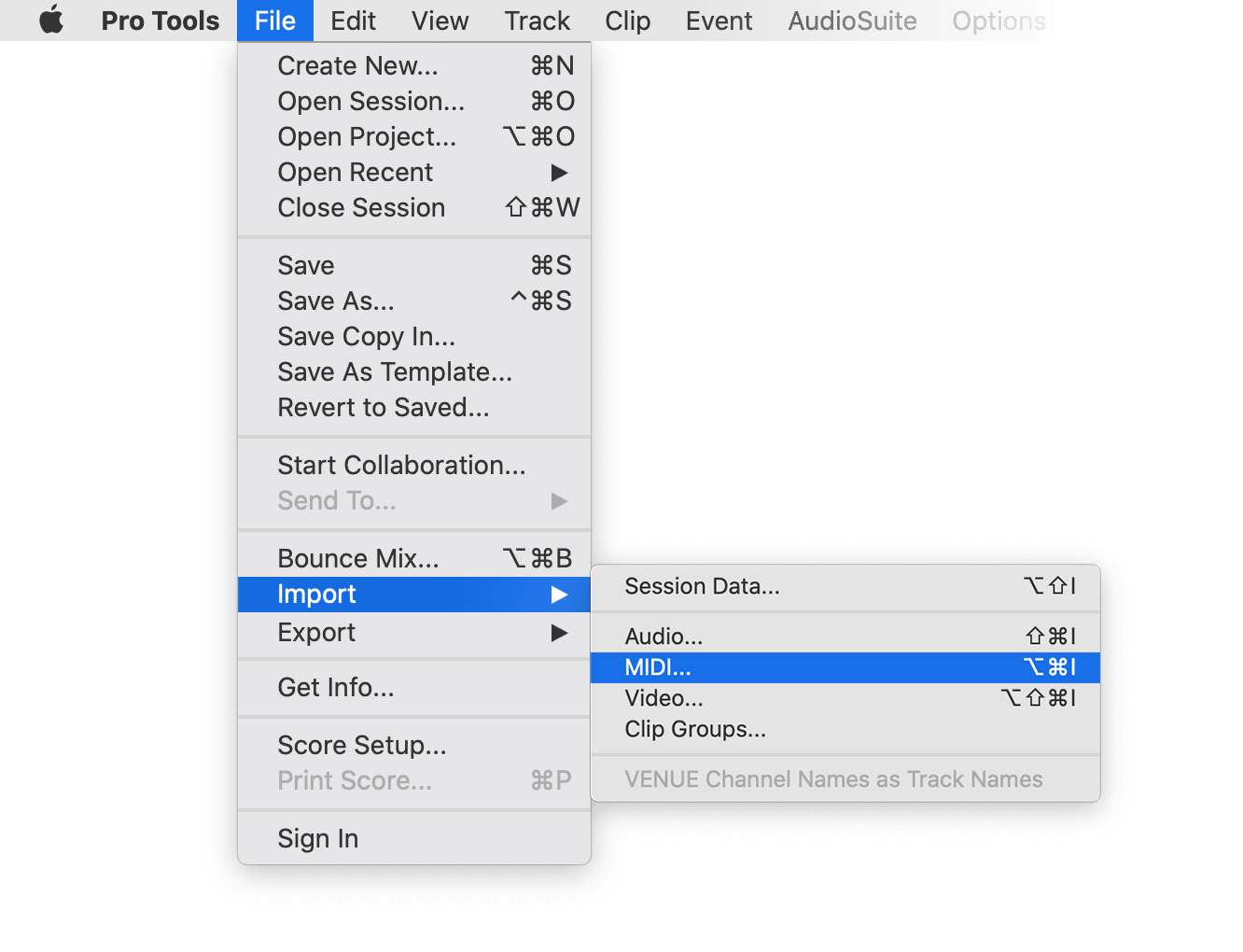
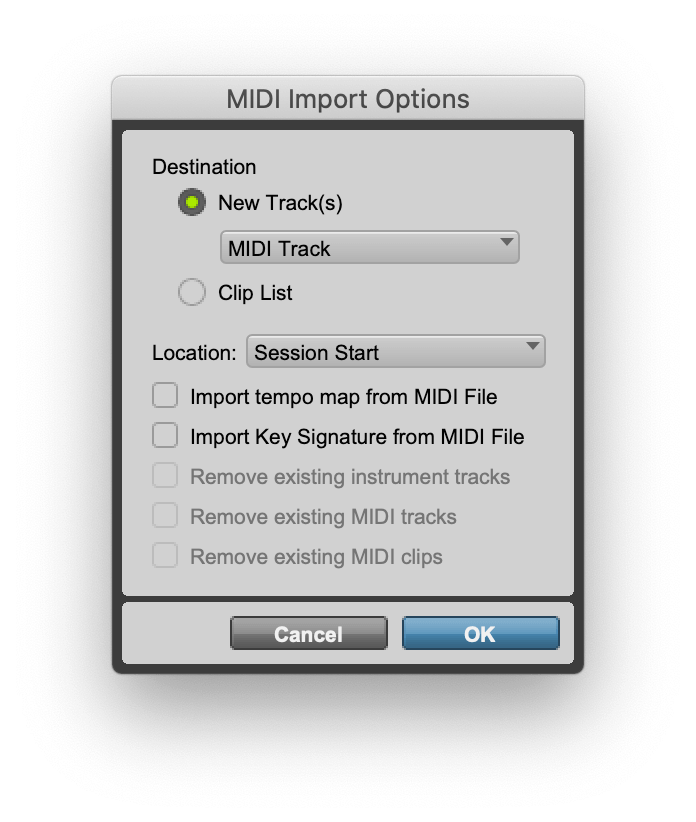
Under "File -> Import -> Midi" you can import the generated marker file into Pro Tools. Select the file and then "Add Midi Track". Attention, if there is already a midi track with markers you have to remove them first. If your session is not at 00:00:00:00 the imported markers have an offset.
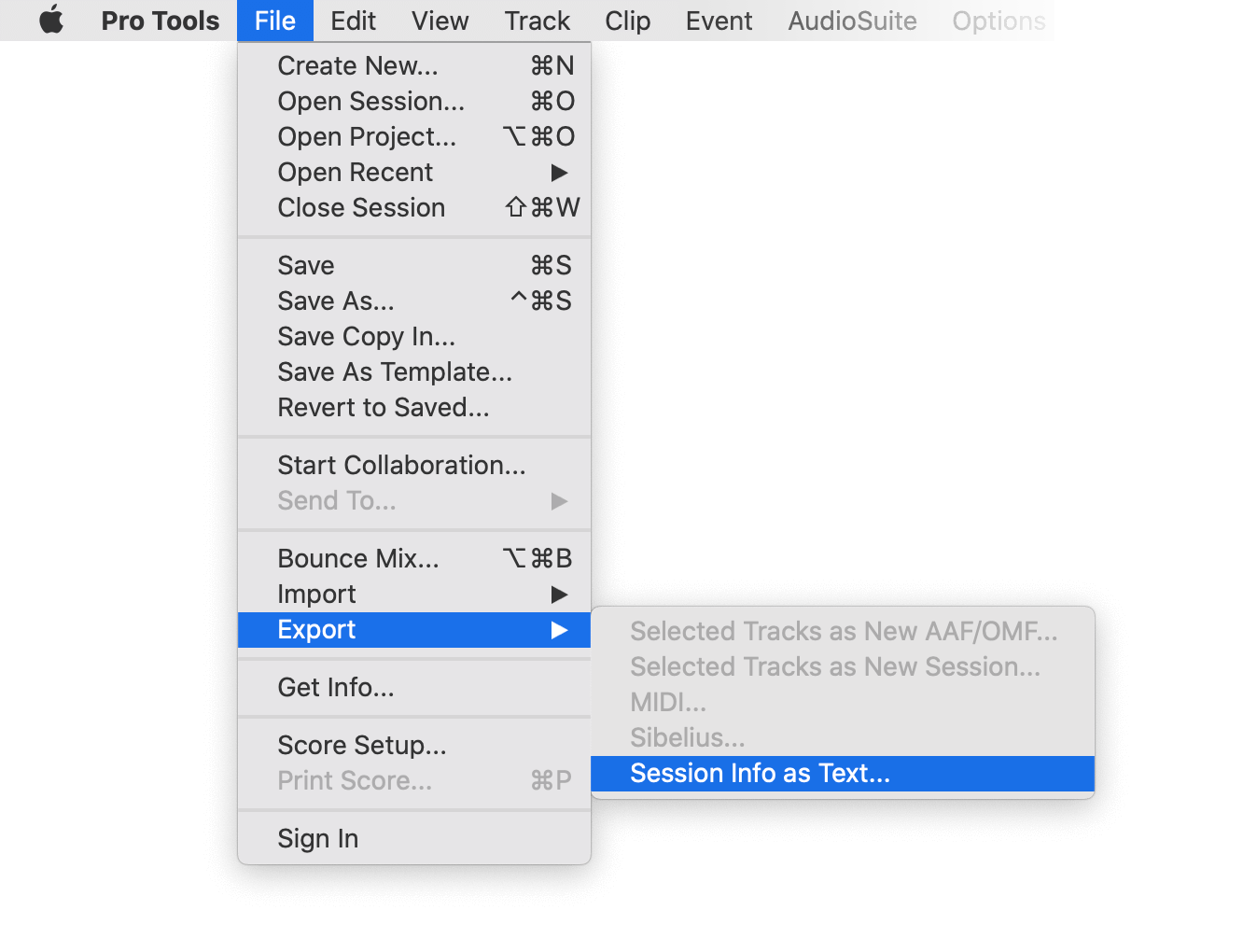
Under "File -> Export -> Session Info as text" you can export the markers from Pro Tools.
1. Create a new timeline or open a timeline in your project
2. Right-click the sequence timeline in your media tab.
3. Navigate to: Timelines > Import > Timeline Markers from EDL
4. Select the edl marker file for Resolve.
1. Select the sequence in your media tab.
2. Right-click the sequence timeline.
3. Navigate to: "Timeline > Export > Timeline Markers to EDL (.edl)"
Navigate to: "Timeline > Export > Edit Index (.csv)"
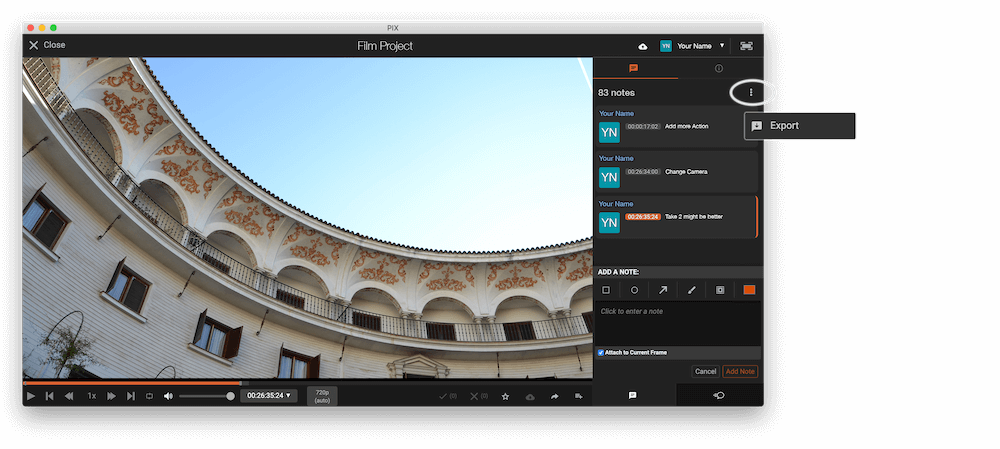
Open the comments panel on the right side in Pix. Press the three dots and select "Export". You can then download a CSV file from Pix that you can import into EditingTools.io.
Export markers from frame.io in marker menu "Download as File" > "CSV".
Export review notes from your project on vimeo.com as "CSV". Select "Vimeo Review" in the tool as "from" value.
You can use this tool to convert markers to YouTube Chapter Markers for the video description. Select "Convert to" to "YouTube Chapter Markers (.txt)". Open the generated .txt file and paste its contents into your video description.
To export markers and comments from NOTETRACKS Pro, click the Download button in your active session and select "NoteTracks.com > Audition Markers (.csv)". In our Marker Tool, select Convert from "NoteTracks.com > Audition Markers (.csv)".
NOTETRACKS Pro is an online review platform for audio creators. Learn more at notetracks.com.
To export comments from Krock.io, select a video and open the menu via the three dot icon. Select "Export comments to csv" to export the comments. In the marker converter select "Krock.io" as "convert from" value.
Krock.io is an online media content review tool. Learn more at Krock.io.
Convert comments from E-Mail, Word, Pages, Slack, Chats or any other clean Text Source into markers using the Textfield option. Simply copy and paste the comments into the textfield.
0:32 Please add Music
1min Intro
1:55min Add Cut
17.6min VFX Shot?
21:12 Add Detail Shot
23.1 VFX
75:20 Credits?
1:32, 01:32, 00:01:32, 1.32, 01.32, 1:32min → TC 00:01:32:0075:20, 75:20min, 75.2 → TC 01:15:20:00
Open Google Sheets and go to "File -> Import". Upload the generated CSV file and press "Import Data".
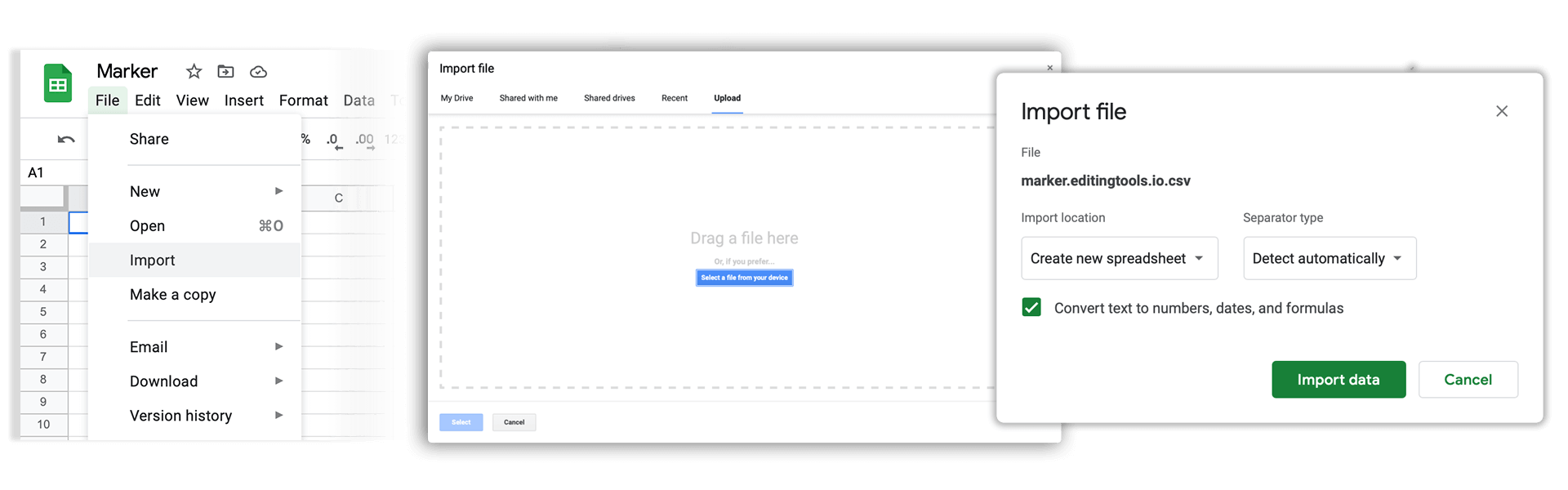
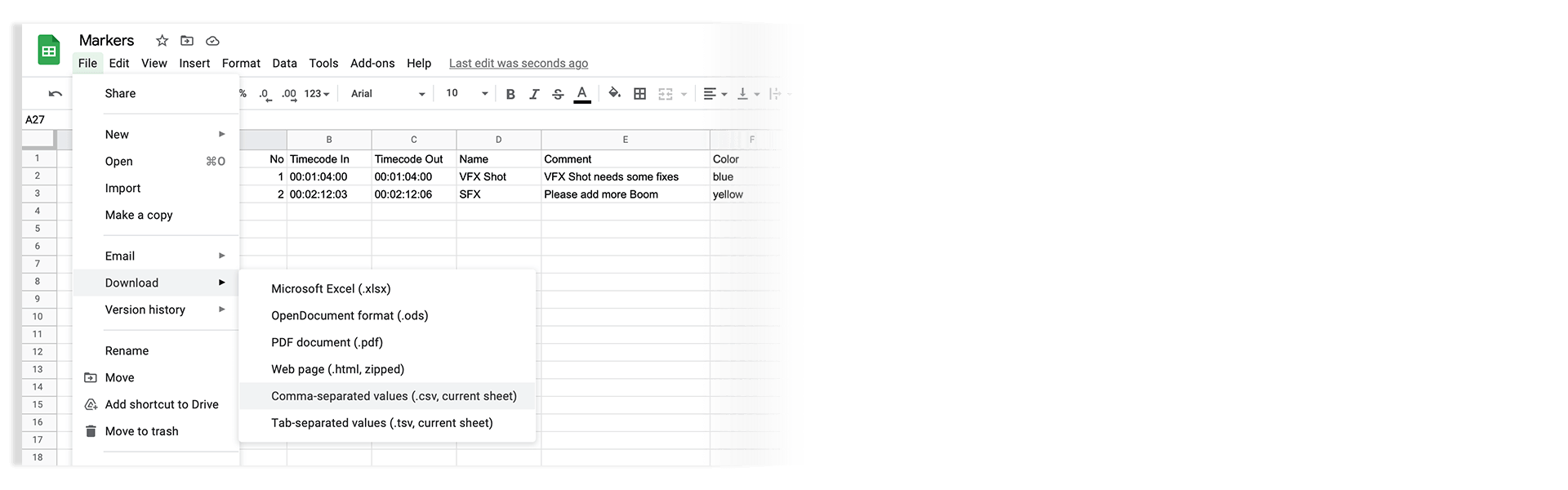
Go to "File -> Download -> Comma-separated values". Download the CSV demo file here: demo_marker_file.csv.
Markers can be exported as XLSX or XLS files for Microsoft Excel.
Markers can be exported as ODS (OpenDocument Spreadsheet) file for Open Office Calc.
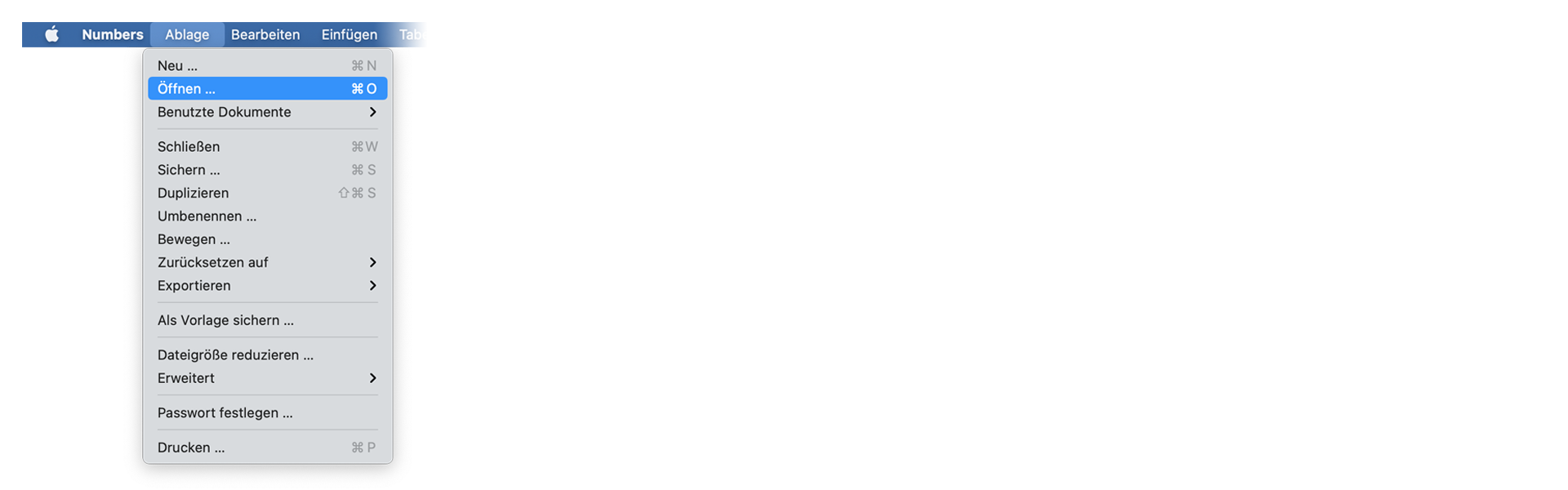
Open Numbers and go to "File -> Open". Simply open the CSV file.
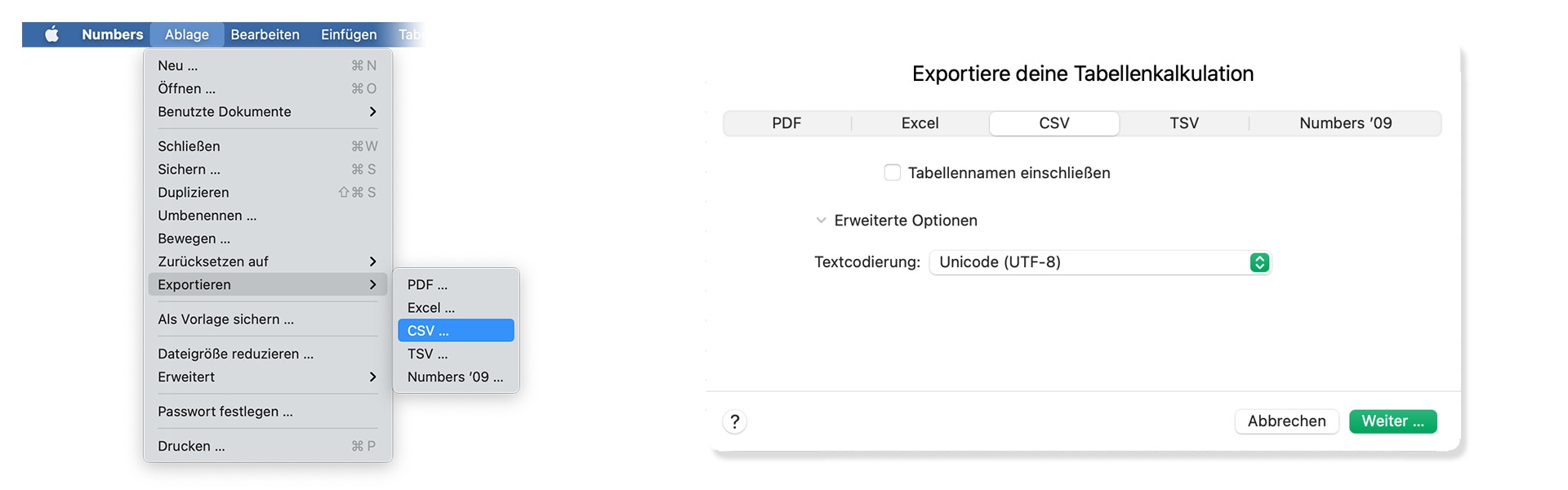
Go to "File -> Export -> CSV". Download the CSV demo file here: demo_marker_file.csv.
Yes. Just take a look at our demo files to match the rules for correct interpretation. The marker converter accepts comma-, semicolon- and tab-separated files.
Download the CSV demo file here: demo_marker_file.csv.
Marker CSV Preset in Google Sheets: Open in Google Drive.
Only "Timecode In" is necessary. All other headers are optional. Accepted colors: blue, cyan, green, yellow, red, orange, magenta, purple, fuchsia, rose, sky, mint, lemon, sand, cocoa, white, black
Simply select your subtitle file.
Yes. Have a look at our Subtitle Tool & Converter.
To export a PDF, select pdf as output format.
You can use otranscribe.com to generate your markers from any audio or video file.
To export the markers go to "Download Transcript as" and download your script as "oTranscribe format (.otr)".
Ambient's NanoLockit is a great way to log takes on set. The log files (.markers) can be converted to any other format using this marker converter.
Learn more about the NanoLockit on ambient.de/collections/nanolockit
You can export comments from Dropbox Replay in JSON format to convert them with our tool.
Our free marker tool offers a huge amount of features to convert and modify files. However, there are some limitations on the free tier that require a PRO subscription to unlock.
Explore Pro Features| Feature | Free | Pro |
|---|---|---|
| Conversion limit | Fair Use | No limit |
| Entries per file | up to 1200 | No limit |
| Premium formats | ✕ | ✓ |
| File encryption | ✕ | ✓ |
We have a light version of our Marker Converter available as an offline app for macOS and iOS. It is aimed at users on air-gapped systems and enterprise customers.
The supported formats and features in the standalone app are outlined in the app description. Not all features from the online app are available in the offline app.
İster bir geliştirici olun, ister Zapier veya Make gibi araçlarla daha fazla süreci otomatikleştirmek isteyin, API'mizi kullanarak bu aracı iş akışlarınıza kolayca entegre edebilirsiniz. API belgelerimizde REST API'yi entegre etme hakkında daha fazla bilgi edinin.
API Dokümantasyonu