1. Export a CSV marker file from Pix
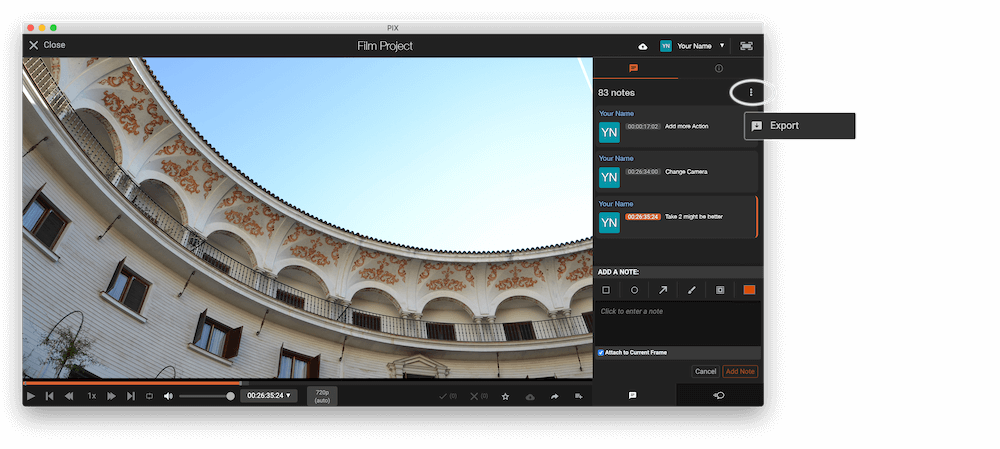
Open the comments panel on the right side in Pix. Press the three dots and select "Export". Now you can then download the CSV file from Pix.
The timecode in Pix starts with 00:00:00:00 for each clip, so you may need to use the offset function on EditingTools.io to sync it with you timeline or move it manually in your NLE (editing software).
2. Use the "İşaretleyici Dönüştürücü" to convert the CSV marker file into a CSV file
Open the free İşaretleyici Dönüştürücü, select "Pix Systems > Comments (.csv)" and set "convert" to "CSV for Apple Numbers". Generate and download the file. Dosyayı dönüştürürken sorun yaşarsanız ücretsiz destek ekibimizle iletişime geçebilirsiniz.
3. Import the CSV file into Numbers
Open Numbers and go to "File -> Open". Simply open the CSV file.

🚀 Bitti
Şimdilik bu kadar! Bu eğitimi faydalı bulduysanız bizi desteklemek için lütfen paylaşın. İş akışını nasıl iyileştirebileceğimize dair önerileriniz varsa lütfen bize bildirin!